
By Lynette Mueller
The days of remote proceedings for attorneys and court reporters are here to stay. Remember when our “new normal” first began? Wow, we had to pivot big-time, didn’t we?
Remote proceedings are still a learning curve for us court reporters and our clients. The remote platforms are evolving constantly. That’s the thing — right? — change is a constant. Nowadays we are faced with the notetaker apps making their appearance in Zoom and other remote platforms.
What do we do when they make their appearance? Well, thankfully, we now have NCRA Code of Professional Ethics (COPE) guidance to help us with that! You can access their guidance here.
I have my own paid Zoom account, so I’m always the host for depositions with my clients. Court reporters across the country work in different ways. That’s the beauty of our profession; we have choices on how we want to work and provide a living for our families.
If you are the host of your own account, please go into your account settings on the web (not your app) and review them thoroughly and disable all AI features. You need to log in to the Zoom Web Portal, go to Settings and select AI Companion tab.
Review the AI Companion settings and disable any Zoom AI features you do not want available during your proceedings. Then review Zoom’s security and app-access settings separately to address third-party AI notetaker bots.

As of August 24, 2026, Zoom has implemented several security features and built-in bot protection to help block unauthorized participants or bots. Bots such as AI notetakers try to join as a participant and appear in the video tiles and the participant list, making them difficult to distinguish from real users.
Bots typically join through one of two paths: Zoom Marketplace integrations such as the Zoom Meeting SDK and Zoom RTMS which lets meeting hosts control which bots are allowed, and an unofficial path with automated use of the Zoom Native or Web Apps.
Here are the steps to use when limiting unwanted participants and/or bots:
Require sign-in to join
You can require participants to be signed in to their Zoom account before joining a meeting or webinar. This prevents anonymous or unauthenticated users, including bots, from entering your sessions.
To require sign-in-to-join settings, learn more about requiring authentication to join meetings and webinars.
You can also limit the sign-in requirement to only the Zoom Web App, which minimizes the impact on participants using the desktop or mobile app.
To require sign-in to join on the Web App only, learn more about requiring sign-in for the Web App.
Block specific domains from joining
You can restrict meeting and webinar access based on email domains. This ensures that only participants from approved organizations or domains can join your sessions and prevents users with unapproved email domains from entering.
To configure domain-based restrictions, learn more about blocking specific domains from joining meetings.
Put guest users in the waiting room
The waiting room lets you control who enters your meeting or webinar by holding participants in a queue until you admit them. This gives you the opportunity to review and verify each participant before they join the session. You can configure the waiting room to auto admit signed-in users, but guest users (users who are not signed in) are placed in the waiting room for the host to review.
To enable and configure the waiting room, learn more about enabling the waiting room.
Bot-blocking dashboard
The Meetings app dashboard shows an overview of what apps are attempting to join, joining, or being blocked from your meetings and webinars.
To view the bot-blocking dashboard, learn more about bot blocking dashboard.
If you’re working for an agency on a remote proceeding, ask them whether its Zoom account has been configured to limit unwanted AI features and third-party bot access so you, hopefully, don’t need to have a conversation about removing unwanted AI notetaker apps. It will make the day start off in a good way not to have that “difficult” conversation.
If you do encounter a bot or AI note-taking app that has already entered the meeting and you’re the host, you can do the following:
- Click the three dots icon next to the AI participant’s name in the participant or video window
- Select Put in Waiting Room or Remove to kick the bot out of the active call.
- You can use Chat commands to remove third-party tools like Otter or Read. More on that later.
Remember that the above suggestions are applicable to things you can do while actively in the Zoom platform and you control the account as the host. There are other apps and platforms that people can use, and do use, outside of Zoom to record the proceedings and use the AI notetaker apps.
Removing the AI bot does not necessarily prevent AI transcription. Some services can capture meeting audio locally without appearing as a participant in Zoom.
Zoom cannot technically prevent or detect every instance in which a participant uses software running locally on that participant’s own device. Unfortunately, we cannot control those instances of recording.
Here’s another helpful tool to keep in your back pocket: Some AI notetaker bots respond to specific commands typed directly into the Zoom chat. In certain cases, you don’t even need to be the host or co-host to use them.
Technology is going to keep changing — we all know that much, for sure. The apps we see today may look completely different six months from now. Our responsibility is to stay informed, understand the tools showing up in our remote proceedings, know what we can and cannot control, and be prepared to address them professionally when they appear.
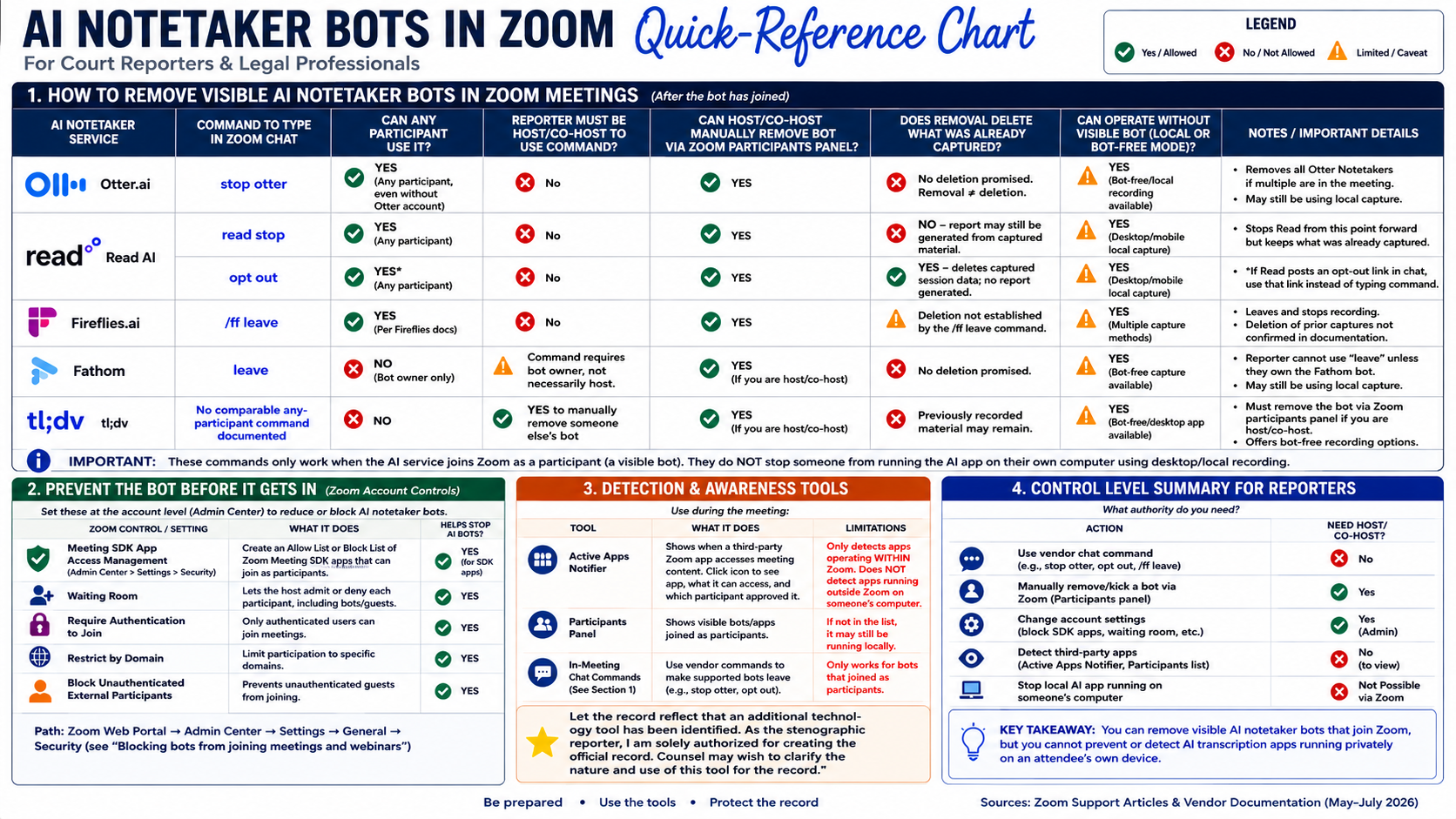
Below is a chart I created to help navigate the ins and outs of a few of the apps I know about today.
You can learn more about each app and how to remove them in the chart below. Pay particular attention to Read AI. There is an important difference between telling it to stop and opting out. According to Read AI’s documentation, the “opt out” option removes Read and deletes the captured session data rather than simply stopping future capture.
Note: The information and commands were verified as of August 2026. AI platforms and Zoom features change frequently, so always check the linked vendor documentation for current instructions.
And remember, we don’t have to become the AI police. If an unfamiliar technology appears in the proceeding, identify it and make a clear record. Counsel can then address its use.
The COPE language is: “Let the record reflect that an additional technology tool has been identified. As the stenographic reporter, I am solely authorized for creating the official record. Counsel may wish to clarify the nature and use of this tool for the record.”
(Click to enlarge)
To learn more about the apps in the chart, see the articles below.
Technology is going to keep changing — we all know that much, for sure. The apps we see today may look completely different six months from now. Our responsibility is to stay informed, understand the tools showing up in our remote proceedings, know what we can and cannot control, and be prepared to address them professionally when they appear.
We should not fear technology, but we do need to understand it.
Keep reviewing your Zoom settings, stay current with NCRA guidance, and bookmark the resources above. Remember the most important thing: We are the guardians of the record. Technology is always sitting in the room with us, but it doesn’t change our responsibility to protect the official record.
Lynette Mueller, FAPR, RDR, CRR, is a freelance court reporter based in Memphis, Tenn., and an NCRA Director. She can be reached at lynette@omegareporting.com.